Respondus
- Open Respondus.
- Prepare a file that match Respondus supported file type and format. Please click the Question Mark icon > Appendix > Standard Format for Importing Questions. (This guide will be using .docx)
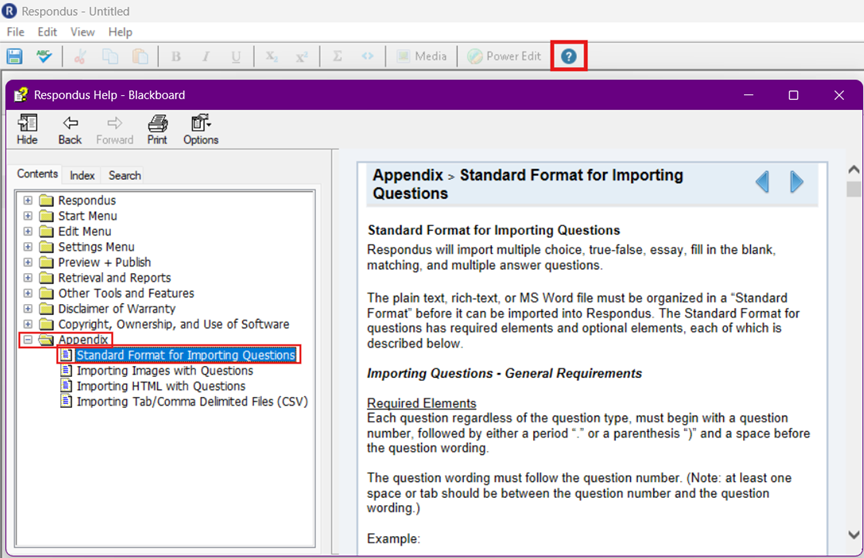
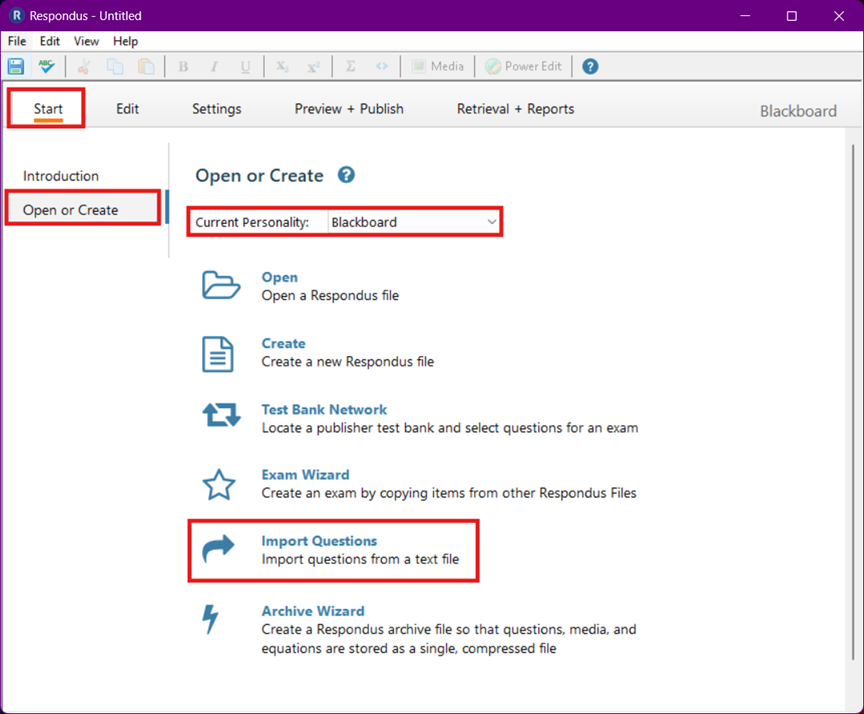
- Within Respondus > Select Start tab > Select Open or Create from the left menu > Current Personality: Blackboard > Choose Import Questions.
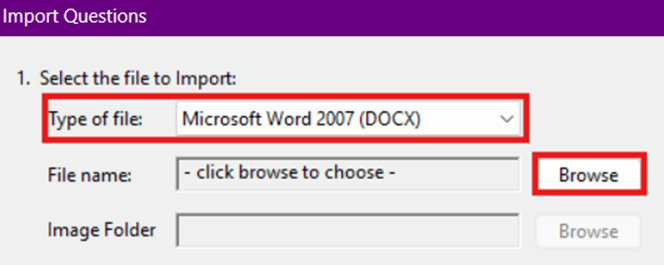
- Select which type of file you are going to import > Then click Browse to select the file.
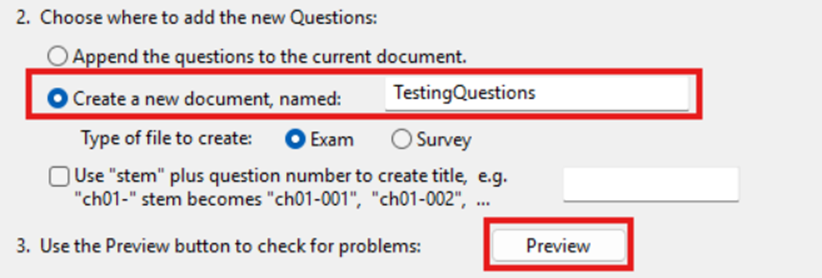
- Under Choose where to add the new Questions > Select Create a new document > Provide a document name > Click Preview button to check any possible issues.
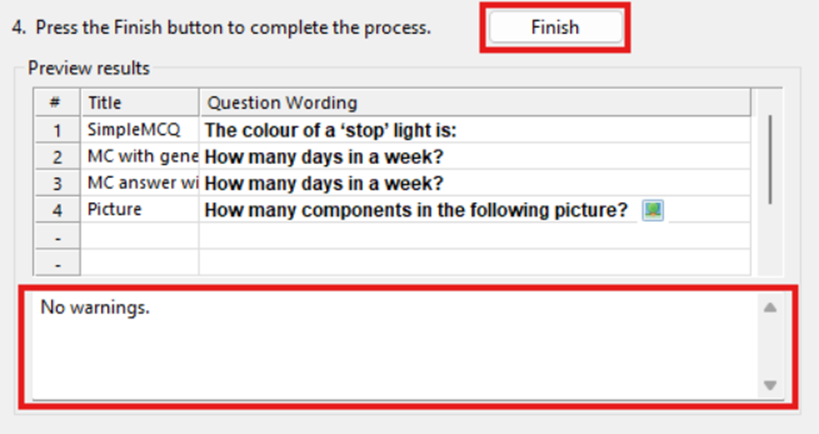
- If no warnings / errors > Select Finish button.
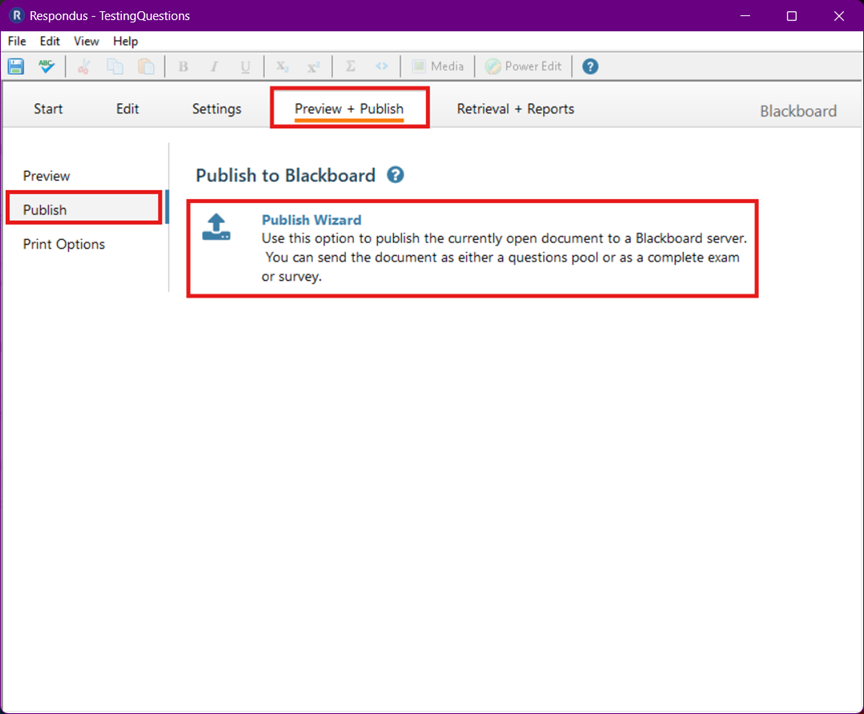
- Return to Respondus > Select Preview + Publish tab > Select Publish from the left menu > Choose Publish Wizard.
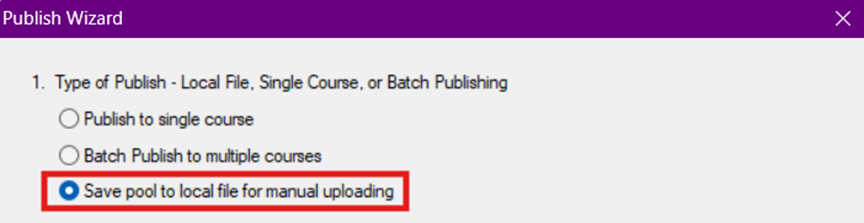
- Under Type of Publish > Save Pool to local file for manual uploading > then select Next.
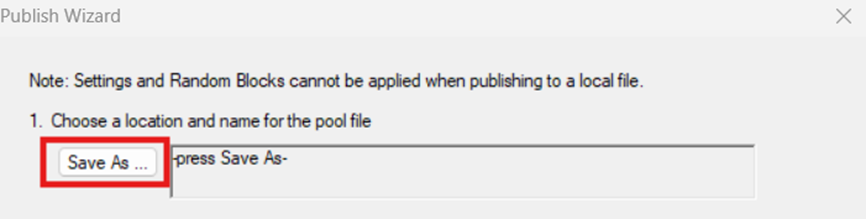
- Select Save As to choose a location on your computer.
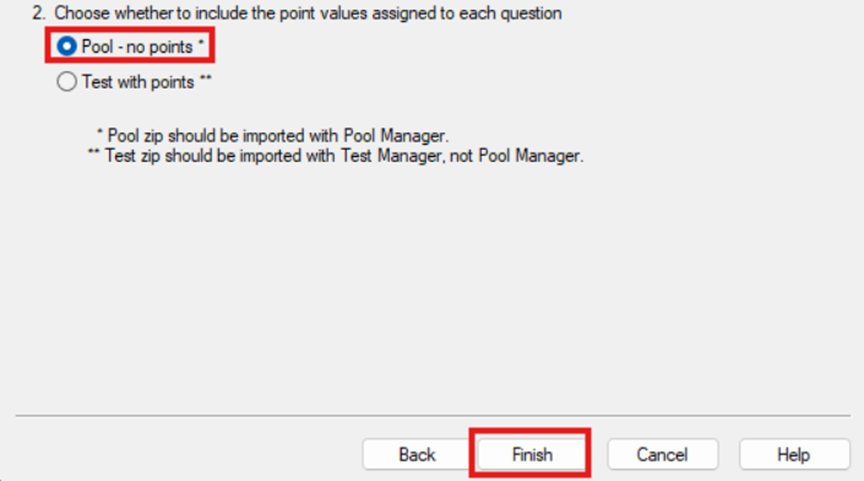
- Under Choose Whether to Include Points > Choose Pool – no points > Click Finish.
Blackboard Ultra
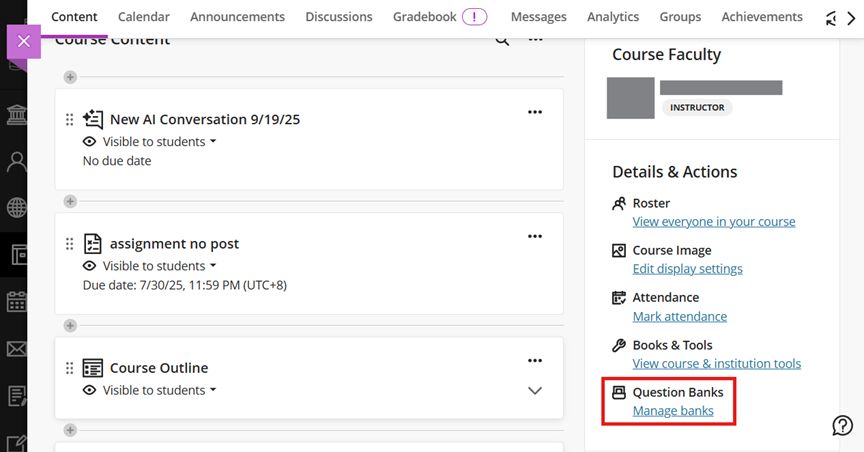
- Access your Blackboard Ultra course > Details & Actions > Manage banks.
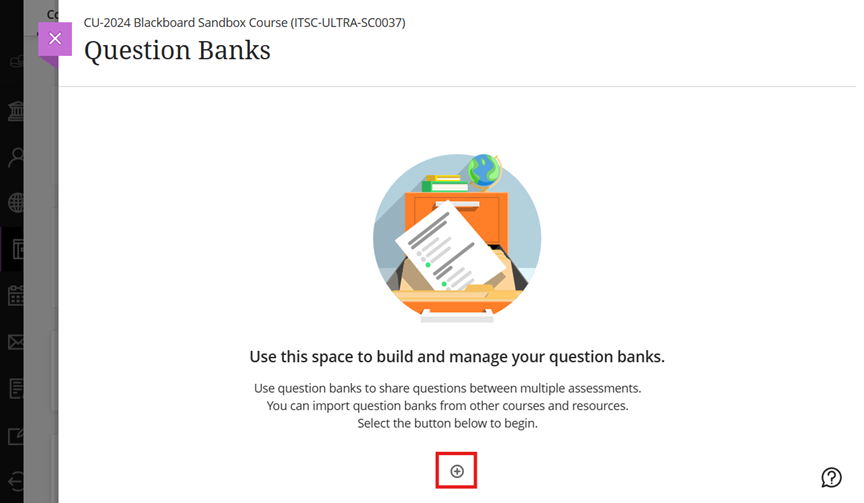
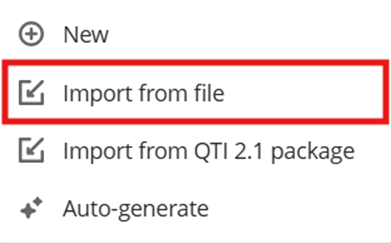
- Click the plus icon > Import from file > Select the zip file you have just saved.
- Wait for Blackboard to process your import.

- Return to Content page > Edit existing / Create a new Test.

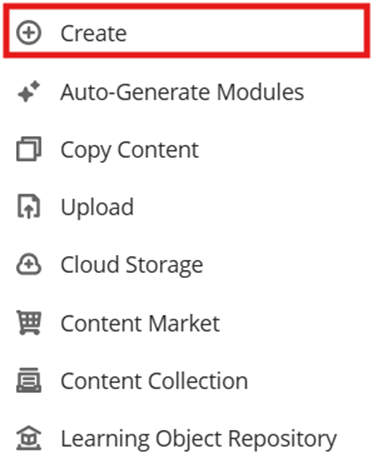
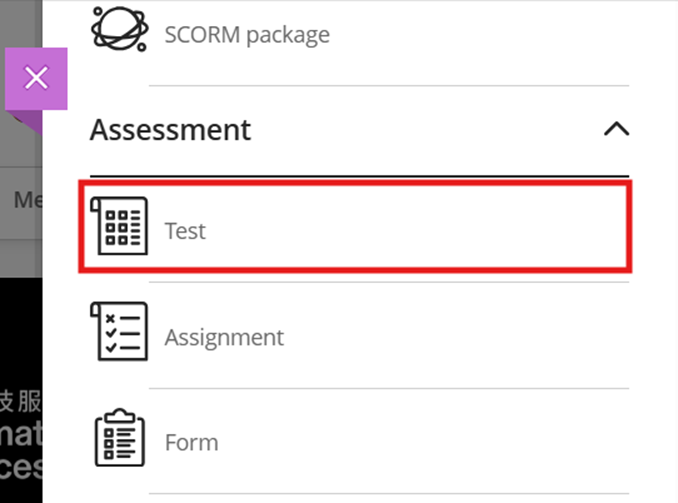
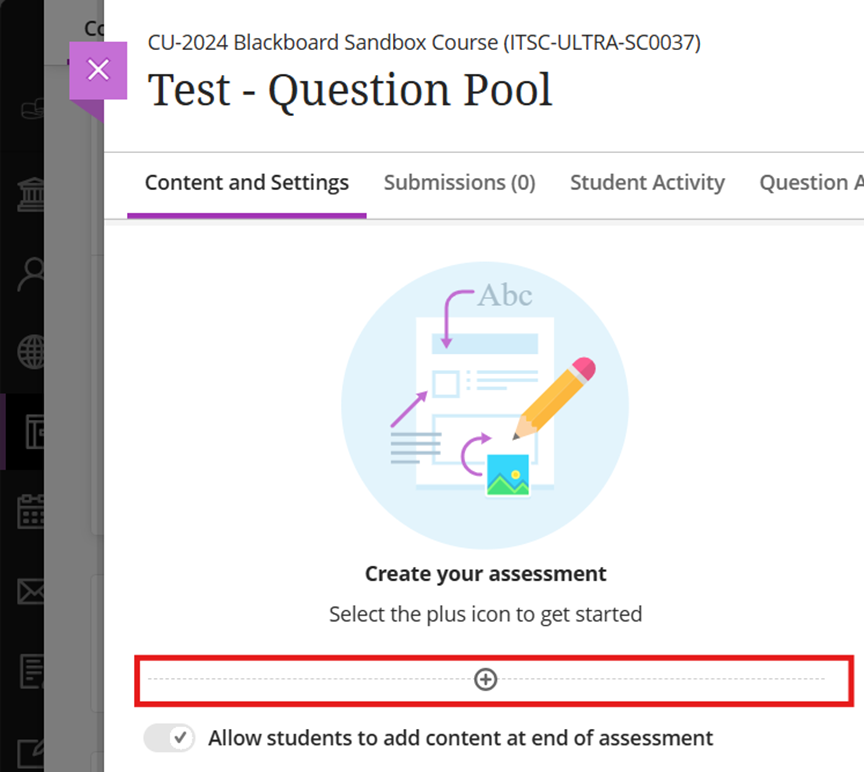
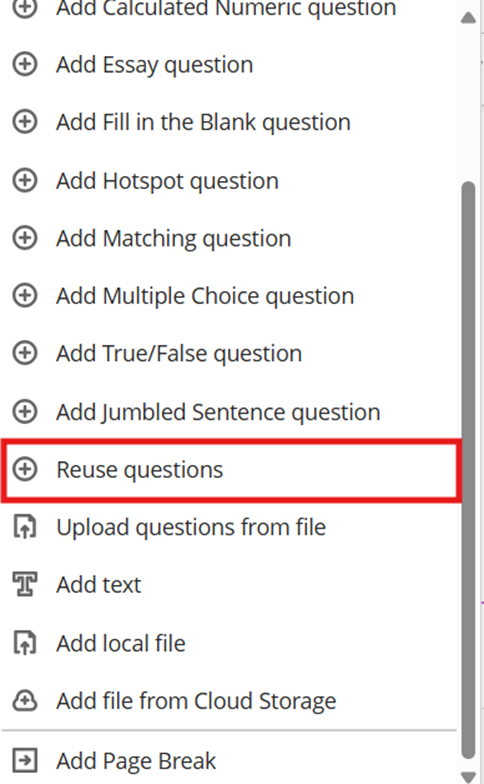
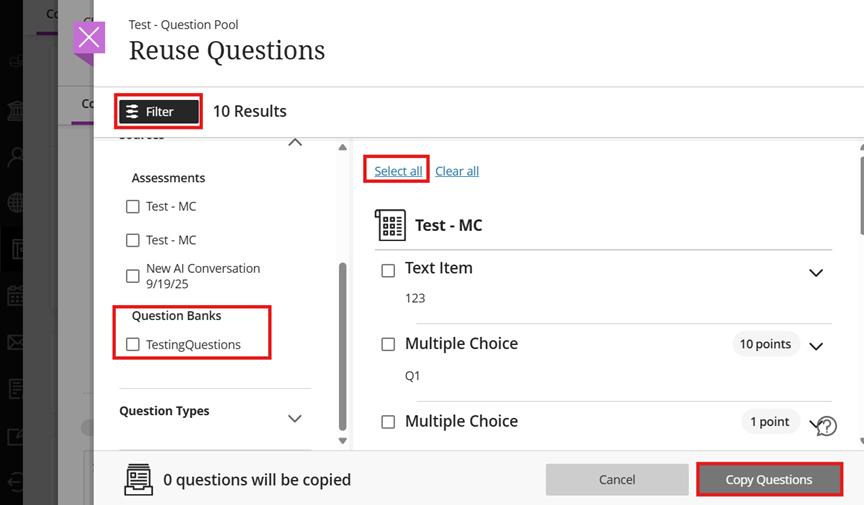
- Click the plus icon > Select Reuse questions.
- Filter your sources from the left menu by checking the name > Select the questions you wanted to use > Click Copy Questions.
- Access your Blackboard Ultra course > Details & Actions > Manage banks.

For more information: Manual import of Respondus files into Blackboard Ultra – Respondus Support
Contact us: ITSC Service Desk (https://servicedesk.itsc.cuhk.edu.hk) / elearning@cuhk.edu.hk